Effectively Reporting a Jubilant Issue
Here are some actions an end-user can take to effectively pass an issue to their own organisation's support team.
Gather the relevant information requested below and send to the support team.
Description of the Issue
A clear description of the issue.
This should include where possible:
- A description of the issue.
- A description of the expected behaviour.
- What was being done when the issue appeared.
- Steps to recreate the issue.
- Information about the access device (Windows, Mac, iPad or Android tablet. Microsoft Edge, Google Chrome, Firefox. Etc.)
Correlation ID with Date and Time
The Correlation ID with date and time helps support identify the issue in logs.
Note
It is important to do this as soon as the issue presents itself.
To copy the Correlation ID with date and time into the clipboard, first press the settings gear at the bottom left of the Jubilant window:

Next, press the first blue copy icon after the Correlation ID at the top of the settings window.
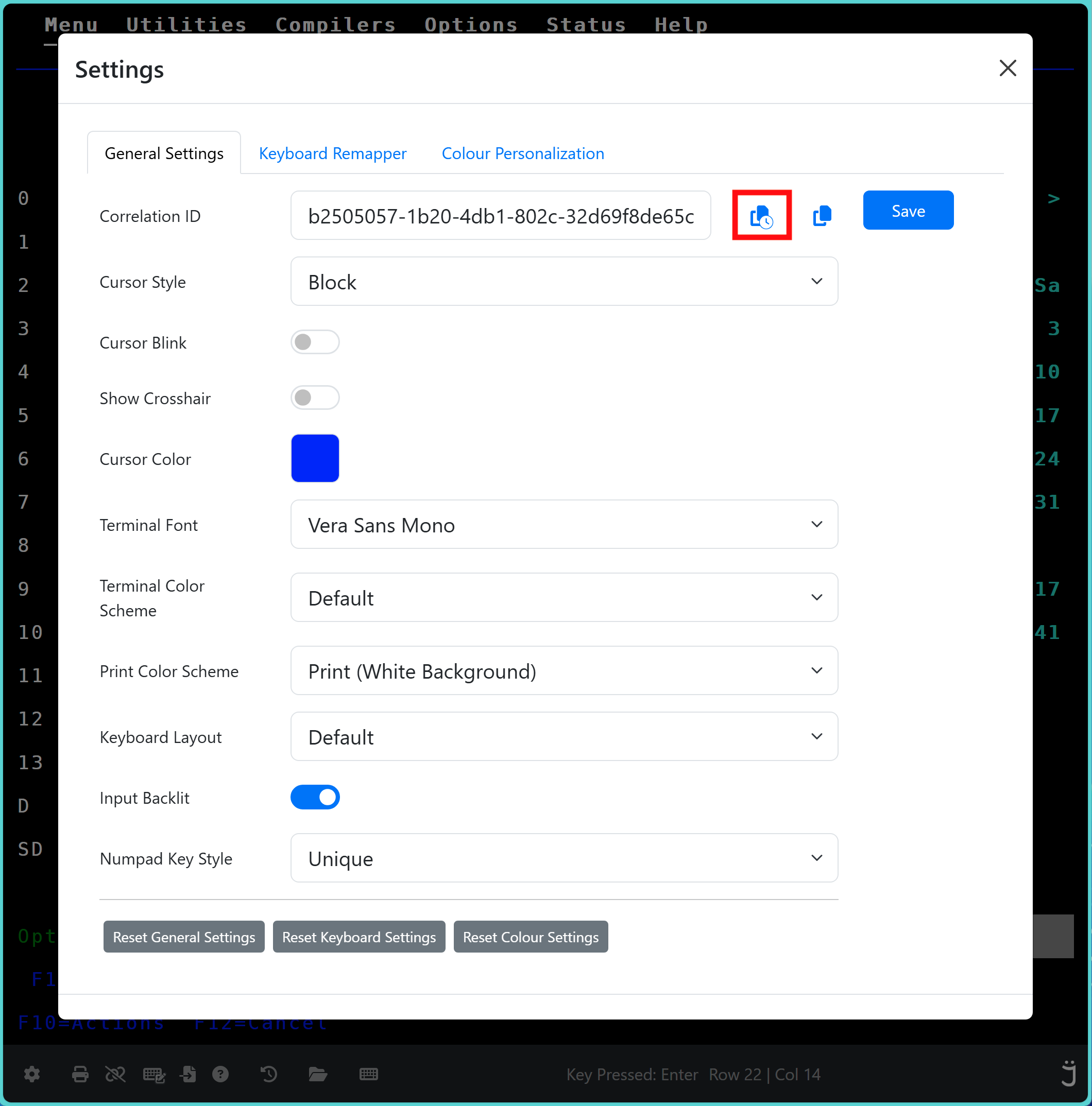
Paste what has been copied into the clipboard into the email that is to be sent to the support team.
The clipboard contents will look similar to:
b2505057-1b20-4db1-802c-32d69f8de65c (08/28/2024, 17:32:09 EST)
Screen Issues
If there is an issue with the drawing of a screen, please take a screen shot and paste it into the email that is to be sent to the support team.
If a screen shot can be taken with an alternative emulator that shows the screen as is expected, this would be very useful too.
Error Messages
If there are any error messages, please take a screen shot and paste it into the email that is to be sent to the support team.
For Support Teams and Administrators
Please see the Administrator documentation on how to locate a log file using a Correlation ID.