Block Remote Access to Management Web Apps
Introduction
It may be desireable to block access to the Jubilant Management and Jubilant Log web apps from a remote location (non-localhost). This article takes the reader through the steps to only allow access to /fjmanage and /fjterm from the local machine via http://localhost or http://127.0.0.1.
Note
These steps may disconnect Jubilant end-users. It is recommended to carry out these steps out-of-hours.
Please note it is easy to copy code block text into the clipboard. Hover the mouse over the block and select the copy icon at the top right.
Install Security Feature
These steps install the IIS "IP and Domain Restrictions" security feature.
- Connect to the Jubilant server via Remote Desktop.
- Press the Windows Start button, and type:
server
- Select the
Server Managerapplication. - Wait for the bar at the top of Server Manager to stop pulsing.
- On the menu at the top right, select
Manage->Add Roles and Features. - Click the
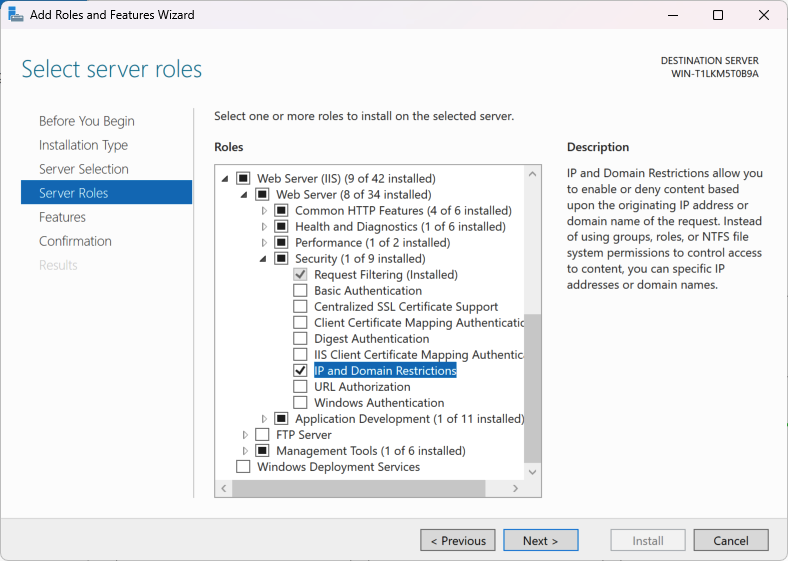
[Next >]button three times to arrive at theSelect server rolesstep. - Expand the tree
Web Server (IIS)->Web Server->Security. - Locate the
IP and Domain Restrictionscheck box, and tick it.
- Press
[Next >]until the[Install]button appears. - Press the
[Install]button and wait for the install to complete. - Press the
[Close]button once the install has completed. - Close the
Server Manager.
Configure Security
FJLog
- Connect to the Jubilant server via Remote Desktop.
- Press the Windows Start button, and type:
iis
- Select the
Internet Information Services (IIS) Managerapplication. - Expand the tree
{Machine Name}->Sites->Default Web Site1. - Under
Default Web Siteleft-click onfjlog. - On the right-hand side of the IIS Manager (Features view), double click on the
IP Address and Domain Restrictionsfeature icon. - At the very right-hand side, under
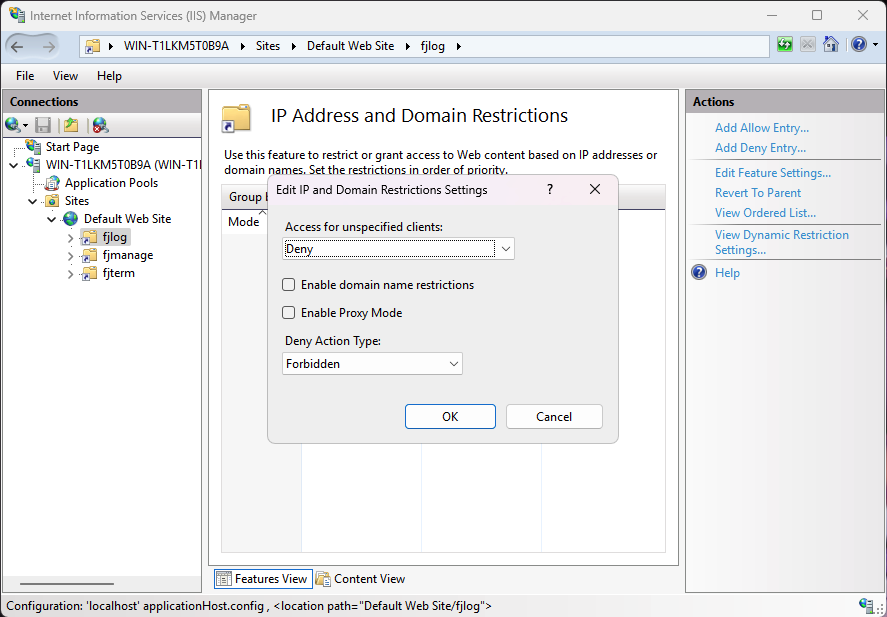
Actions, selectEdit Feature Settings.... - Set
Access for unspecified clientstoDeny. - Set
Deny Action TypetoForbidden.
- Press the
[OK]button. - At the very right-hand side, under
Actions, selectAdd Allow Entry.... - Select
Specific IP address. - Enter the IP address:
127.0.0.1
- Press the
[OK]button. - At the very right-hand side, under
Actions, selectAdd Allow Entry.... - Select
Specific IP address. - Enter the IP address:
::1
- Press the
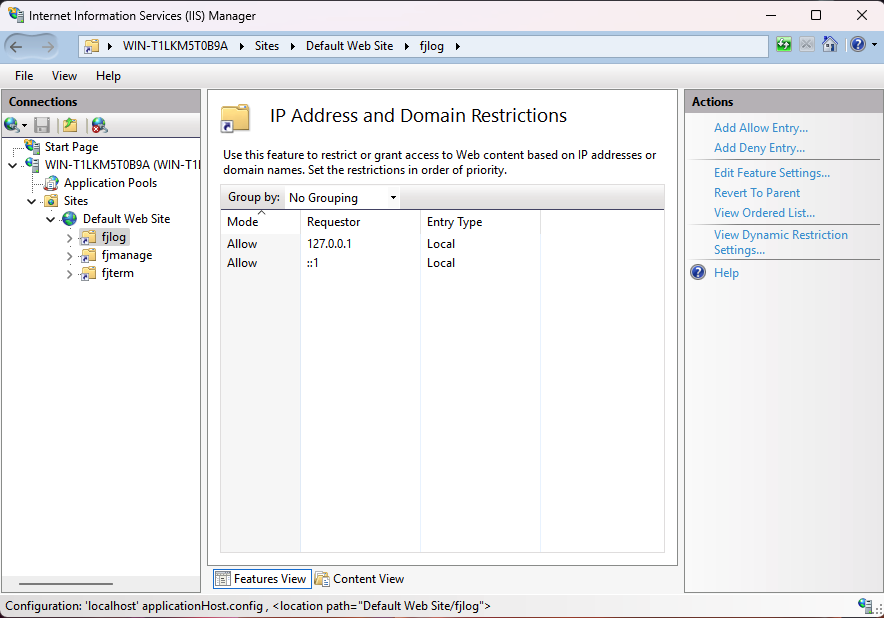
[OK]button. - The
IP Address and Domain Restrictionswindow will look like this:
- Close the
Internet Information Services (IIS) Managerapplication.
FJManage
These steps are the same as FJLog above, except the fjmanage folder is selected in step 5.
- Connect to the Jubilant server via Remote Desktop.
- Press the Windows Start button, and type:
iis
- Select the
Internet Information Services (IIS) Managerapplication. - Expand the tree
{Machine Name}->Sites->Default Web Site2. - Under
Default Web Siteleft-click onfjmanage. - On the right-hand side of the IIS Manager (Features view), double click on the
IP Address and Domain Restrictionsfeature icon. - At the very right-hand side, under
Actions, selectEdit Feature Settings.... - Set
Access for unspecified clientstoDeny. - Set
Deny Action TypetoForbidden. - Press the
[OK]button. - At the very right-hand side, under
Actions, selectAdd Allow Entry.... - Select
Specific IP address. - Enter the IP address:
127.0.0.1
- Press the
[OK]button. - At the very right-hand side, under
Actions, selectAdd Allow Entry.... - Select
Specific IP address. - Enter the IP address:
::1
- Press the
[OK]button. - Close the
Internet Information Services (IIS) Managerapplication.
Validation
The configuration changes can be validated by browsing to the web apps.
When remote desktop-ed into the Jubilant server, the following URLs will correctly connect and make the web app available:
- http://localhost/fjlog
- http://localhost/fjmanage
- http://127.0.0.1/fjlog
- http://127.0.0.1/fjmanage
...and if IPv6 is enabled:
- http://[::1]/fjlog
- http://[::1]/fjmanage
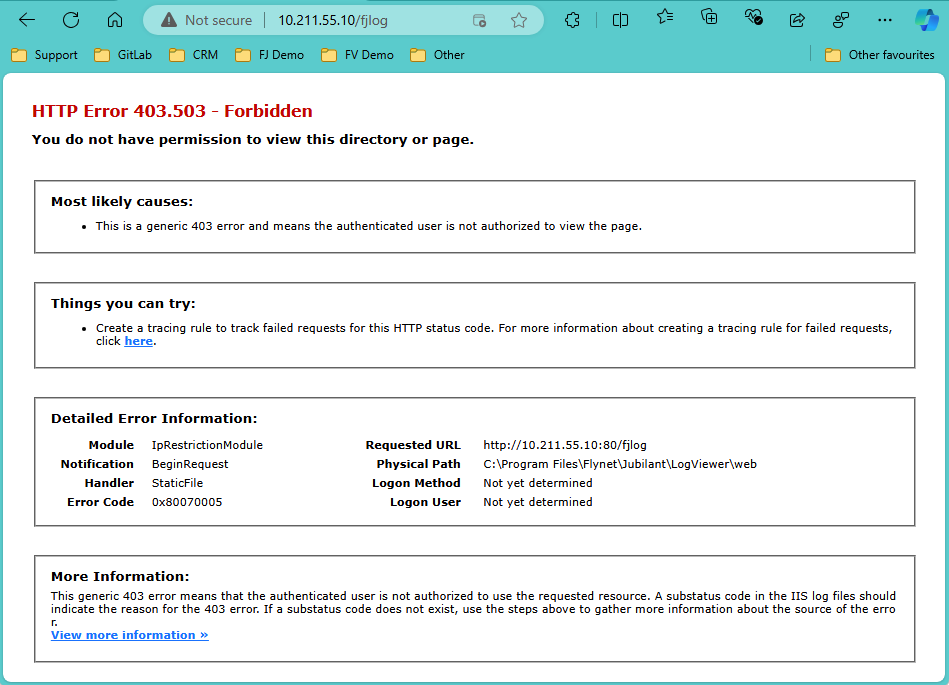
From any location, using the non-local IP address (unique server IP or DNS resolvable name that does not resolve 127.0.0.1, ::1 or aliased to localhost) will result in a Forbidden message.